
Installing Chatcove on Windows
Windows, Edge or Chrome may warn you that Chatcove is unsafe, or block it. Here is why that happens, how to check that your file is really ours, and what to click, step by step.
Short answer
The Windows installer of Chatcove is not code-signed yet, so Windows does not know who published it and shows a warning. If you downloaded it from chatcove.app or our GitHub releases page, you can check the file and install it: in the blue Windows protected your PC window, click More info, then Run anyway. If Smart App Control is on, Windows blocks the installer completely, and we recommend waiting for the signed version.
Why Windows warns about Chatcove
Windows trusts an installer faster when it carries a code signature: a certificate that says who published the file and shows it has not been changed since. Chatcove for Windows is new, and its installer is not signed yet. Microsoft Defender SmartScreen also looks at how often a file has been downloaded. A new file without a signature has no reputation yet, so Windows warns about it and shows the publisher as Unknown publisher.
Codama, the company that makes Chatcove, is getting a Windows code-signing certificate. Once the signed version is out, this warning goes away. We do not have a date yet.
Why it is safe to install, and how to check
We would rather give you facts you can check than ask for trust:
- Who makes it. Chatcove for Windows is built and published by Codama, the same company that makes Chatcove for Mac. The Mac version is signed and notarized by Apple.
- Where to get it. Download Chatcove only from chatcove.app or from our GitHub releases page. A copy from anywhere else may not be ours.
- What happens to your chats. Everything stays on your computer. There is no cloud and no account, and your chats, backups and exports never leave your computer.
- What nobody has done. Microsoft has not reviewed or approved Chatcove, and we do not claim it has. A code signature, when it comes, will tell Windows who published the file. It is not a review by Microsoft.
Check that your file is really ours
Every copy of the installer is exactly the same file, so it has the same SHA-256 fingerprint. If even one byte were different, the fingerprint would be completely different. The fingerprint of chatcove-0.2.0-x64-setup.exe is:
104de682b1417ab948b6bc75cc4763619fccb0fb605c35937a9e744e40a635ccTo check yours:
- Open the folder the installer was saved to, usually Downloads.
- Right-click an empty spot in the folder and choose Open in Terminal. On Windows 10, hold Shift while you right-click and choose Open PowerShell window here.
- Type this command and press Enter:
Get-FileHash .\chatcove-0.2.0-x64-setup.exe -Algorithm SHA256Compare the long code under Hash with the one above. Windows shows it in capital letters, which makes no difference. If they match, your file is exactly the one we published. If they do not, do not run it: delete it, download it again from chatcove.app, and tell us at hello@chatcove.app.
Before you install
- Windows 10 22H2 or Windows 11, 64-bit (x64).
- The free Apple Devices app from the Microsoft Store (iTunes also works). It installs the driver Windows needs to talk to an iPhone. If it is missing, Chatcove tells you and links to it.
- A USB cable for your iPhone.
- Free disk space at least the size of your iPhone's backup.
Step 1: the browser download warning
Your browser may stop the download before Windows sees it, because few people have downloaded this file so far.
Microsoft Edge
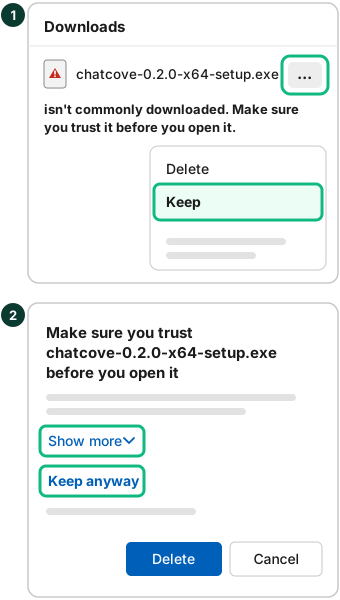
Edge may show the download in its Downloads panel with a warning that it isn't commonly downloaded, and no button to open it. To keep it:
- Open the Downloads panel (Ctrl+J), point at the Chatcove download and click the ... button next to it.
- Click Keep.
- Edge asks you to make sure you trust the file. Click Show more, then Keep anyway.
Google Chrome
Chrome may mark the installer as suspicious, which Google describes as "an uncommon or unfamiliar file", and not finish the download. Google says you can always choose to download a file after a warning: open the downloads list (Ctrl+J), find the Chatcove installer, and choose to download it anyway. Recent versions call this Download suspicious file; older ones show Keep.
Step 2: "Windows protected your PC"
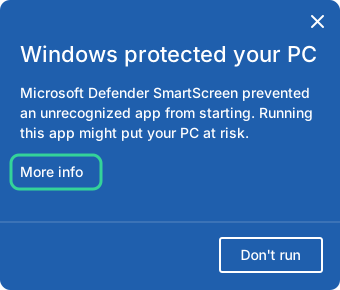
When you open the installer, Windows may show a blue window titled Windows protected your PC. It says Microsoft Defender SmartScreen prevented an unrecognized app from starting, and it only has a Don't run button. To go on:
- Click More info, under the message.
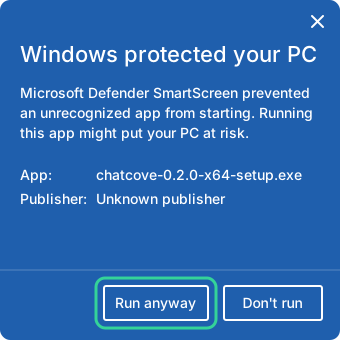
- Check the details: App should say chatcove-0.2.0-x64-setup.exe. Publisher says Unknown publisher for now, because the installer is not signed yet.
- Click Run anyway. The Chatcove installer opens: follow its steps.
Smart App Control: when there is no Run anyway
Smart App Control is a Windows 11 feature (Windows 10 does not have it) that only lets an app run when Microsoft's security service predicts it is safe or when it is signed. If it is On, Windows blocks the Chatcove installer completely, with a notification that Smart App Control blocked an app, and there is no Run anyway button. In Microsoft's words: "There is currently no way to bypass Smart App Control protection for individual apps."
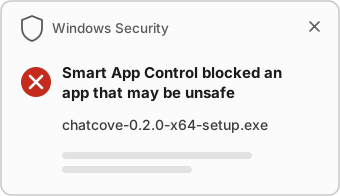
To see whether it is on, open Windows Security, go to App & browser control and click Smart App Control settings. It shows one of three states: On, Evaluation (Windows is still deciding, and blocks nothing, so it does not stop Chatcove) or Off.
Our advice: if it is On, wait for the signed version rather than turning off a protection for one app. Email hello@chatcove.app and we will tell you when it is out.
If you decide to turn it off anyway, know the trade-off. It stops protecting you from every unknown app, not just from Chatcove. Microsoft's FAQ says recent Windows updates let you turn Smart App Control back on later without reinstalling Windows, but Microsoft's Windows Security guide still says turning it on later needs a reset or a reinstall of Windows, so update Windows first. Either way, once you switch it on or off yourself, you cannot go back to Evaluation without reinstalling or resetting Windows.
If your antivirus flags the installer
Antivirus tools sometimes flag new, unsigned files only because they have not seen them before. This is called a false positive. If it happens:
- Check the SHA-256 fingerprint as described above. If it matches, the file is the one we published.
- Report the false positive to the antivirus maker. Most have a form for it. Microsoft's is the Microsoft Security Intelligence file submission page.
- Tell us at hello@chatcove.app, with the name of your antivirus and its exact message, and we will report it too.
Updating Chatcove on Windows
Until the installer is signed, Chatcove for Windows cannot update itself. When a new version is out, download it from chatcove.app and run the new installer: your chats, settings and license stay. Because each version is a new file, you may see the same warnings again.
Still stuck?
Email hello@chatcove.app with a screenshot of what Windows shows, and we will help. Step-by-step help for every Chatcove screen is in Help & docs.
Sources: Microsoft Support, Smart App Control FAQ and App & browser control in the Windows Security app; Microsoft Learn, Microsoft Defender SmartScreen overview, SmartScreen in Microsoft Edge, an archived post on the SmartScreen window and Get-FileHash; Google, Chrome blocks some downloads.
Common questions
Is Chatcove for Windows safe to install?
It is built and published by Codama, the company behind Chatcove for Mac, and it keeps everything on your computer. Windows warns because the installer is new and not code-signed yet. Download it only from chatcove.app or our GitHub releases page, and check its SHA-256 fingerprint if you want to be sure the file is ours.
Why does Windows say Unknown publisher?
Windows reads the publisher's name from the installer's code signature. The installer is not signed yet, so Windows has no name to show. The signed version will show our company name.
Did Microsoft check or approve Chatcove?
No. Microsoft has not reviewed or approved Chatcove, and we do not claim it has. A code signature, when it comes, proves who published the file. It is not a review by Microsoft.
Should I turn off Smart App Control to install Chatcove?
We suggest you do not. If Smart App Control is On, wait for the signed version: according to Microsoft, Smart App Control lets apps with a valid signature run. If it is in Evaluation, it does not block anything, so you can install now.
Will I see these warnings again when I update?
Probably, until the installer is signed: each new version is a new file that Windows has not seen before. Your chats, settings and license stay when you install a new version.