
What is the iPhone backup password?
It is the password that locks your iPhone's backups on a computer, and it is easy to mix up with every other password you have. Here is what it is, why Chatcove needs it, and what to do in each case, including when nobody remembers it.
Short answer
The iPhone backup password protects your iPhone's backups on a computer. It is not your iPhone passcode, not your Apple ID password and not your Mac login. Chatcove needs backup encryption on, because WhatsApp chats are only in encrypted backups. Never set one? Chatcove sets one for you. Forgot it? On the iPhone, go to Settings > General > Transfer or Reset iPhone > Reset > Reset All Settings. That keeps your photos, messages and apps, and removes the backup password.
Which password is it?
While you export WhatsApp, you may meet up to four different passwords. Only one of them is the backup password:
- Your iPhone passcode: the 4 or 6 digits that unlock the phone. The iPhone asks for it when you tap Trust and when backup encryption is turned on. It is not the backup password.
- Your Apple ID password: the password of your Apple account and iCloud. Chatcove never asks for it.
- Your Mac login password: what you type to unlock your Mac. It is not the backup password either.
- The backup password: a separate password that locks every backup of this iPhone made on a computer. This page is about this one.
The backup password is a setting on the iPhone itself, not on the computer. While it is on, every computer backup of that iPhone is encrypted with it, whether the backup is made by Finder, iTunes, another app or Chatcove. It has nothing to do with iCloud backups.
Why Chatcove needs backup encryption on
WhatsApp only includes your chat history in encrypted iPhone backups. An unencrypted backup does not contain it. So Chatcove can only read your chats from a backup with encryption on, and it needs the password to open that backup on your Mac. Every tool that exports WhatsApp from an iPhone backup works this way, iMazing included.
Never set a backup password? There is nothing to do
If backup encryption is off, Chatcove turns it on for you before the first backup. It creates a strong password, keeps it on this Mac, and uses it from then on. The iPhone asks for its passcode once to confirm the change. You never have to choose, type or remember the backup password.
Set one before? Chatcove needs that password
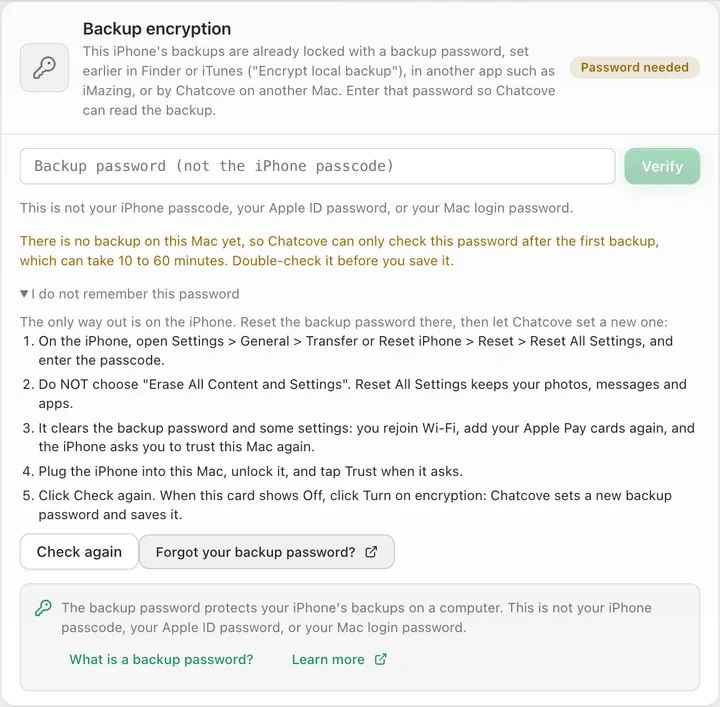
If backup encryption was already on, Chatcove cannot choose a new password. It asks you once for the existing one and keeps it on this Mac. That password might have been set:
- in Finder or iTunes, with the Encrypt local backup option, sometimes years ago. Many people turn it on because encrypted backups also keep Health data, saved passwords and Wi-Fi settings.
- in another app, such as iMazing, which also needs an encrypted backup to export WhatsApp.
- by Chatcove on another Mac. Each Mac keeps its own copy, so the second Mac asks for it.
Type it in Chatcove when it asks. If you do not know it, see the next section.
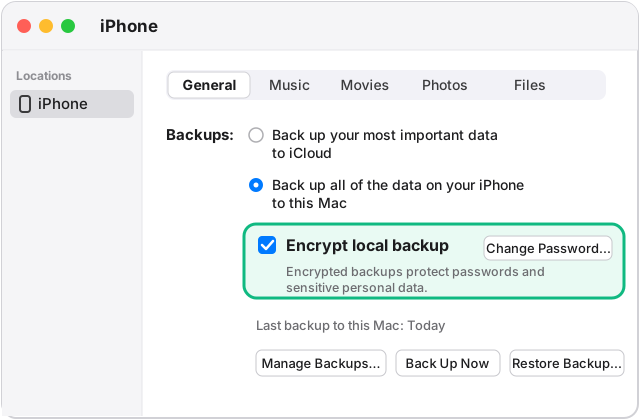
How to check in Finder whether encryption is on
- Connect the iPhone to your Mac with a cable and unlock it.
- Open a Finder window and click your iPhone in the sidebar, under Locations. If the iPhone asks whether to trust this computer, tap Trust and enter your passcode.
- On the General tab, look at the Backups section.
- If Encrypt local backup is ticked, this iPhone has a backup password. If it is not ticked, it has none, and Chatcove will set one.
Forgot it? Reset it on the iPhone
Apple has no way to recover a forgotten backup password. But you can remove it from the iPhone without erasing anything. On the iPhone:
- Open Settings and tap General.
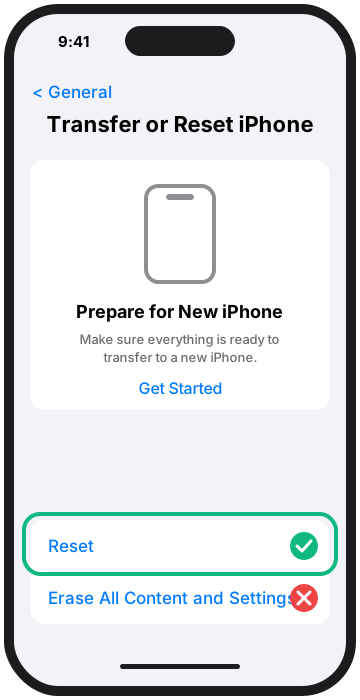
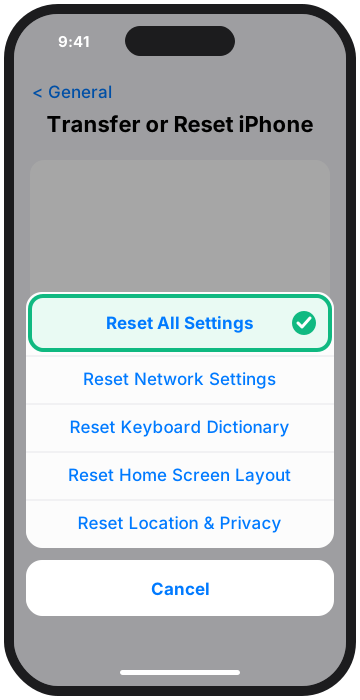
- Tap Transfer or Reset iPhone, then tap Reset.
- Tap Reset All Settings and enter your passcode. Do not tap Erase All Content and Settings: that one erases the iPhone.
- Confirm, and wait for the iPhone to restart.
- Connect the iPhone to your Mac, unlock it, and tap Trust when it asks.
- In Chatcove, back up again. Backup encryption is now off, so Chatcove turns it on with a new password and keeps it on this Mac.
What Reset All Settings keeps, and what it resets
According to Apple, it does not delete your data or media: your photos, messages, apps and WhatsApp chats stay where they are. It removes the backup password and returns your settings to their defaults, including:
- network settings, so you rejoin your Wi-Fi networks;
- the keyboard dictionary (words you added);
- location and privacy settings, which is why the iPhone asks you to trust your Mac again;
- Apple Pay cards, which you add again in Wallet;
- settings like display brightness, Home Screen layout and wallpaper.
Backups made with the old password stay locked with it. A new password does not open them, so Chatcove simply makes a fresh backup.
Sources, on Apple Support: If you can't remember the password for your encrypted backup, Reset iPhone settings to their defaults, About Stolen Device Protection and About encrypted backups.
What the password cards look like in Chatcove
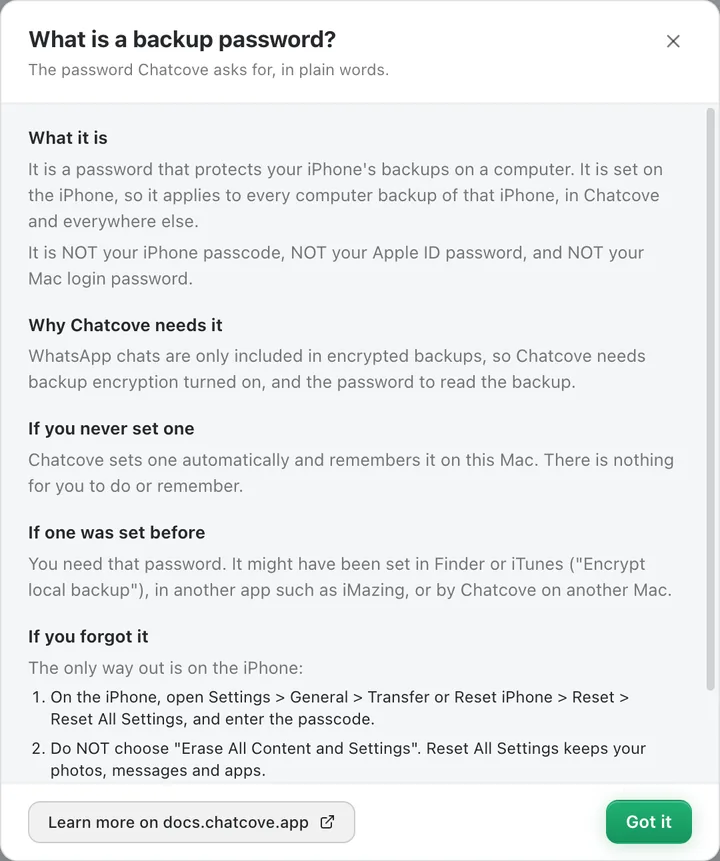
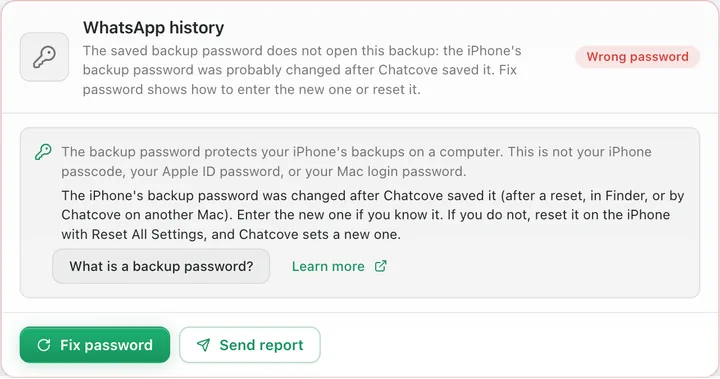
In Chatcove 0.1.8 and later, every card that asks for the backup password, or fails because of it, has a What is a backup password? button that opens the explanation inside the app, and a Learn more link to the docs. The screenshots are in English.
Every Chatcove screen, step by step
The Chatcove documentation walks through each screen, including what to do if Chatcove says the saved password does not match: The iPhone backup password, in the Chatcove docs.
Common questions
Is the backup password the same as my iPhone passcode?
No. The passcode is the 4 or 6 digits that unlock your iPhone. The backup password is a separate password that locks the iPhone's backups on a computer. It is also not your Apple ID password and not your Mac login.
Why does Chatcove need a backup password?
Because WhatsApp only includes your chat history in encrypted iPhone backups, and an encrypted backup can only be opened with its password. Without encryption there is no WhatsApp history to read.
Does Chatcove send my backup password anywhere?
No. Chatcove keeps it on this Mac only, encrypted with macOS. It is never uploaded, and it is never included in problem reports.
Will Reset All Settings delete my WhatsApp chats or photos?
No. According to Apple, Reset All Settings does not delete data or media. It resets settings such as Wi-Fi networks, privacy settings, the keyboard dictionary, Apple Pay cards, brightness, Home Screen layout and wallpaper, and it removes the backup password. Erase All Content and Settings is a different option that does erase the iPhone, so do not use that one.
I use Chatcove on two Macs. What do I do?
Each Mac keeps its own copy of the password. On the second Mac, Chatcove asks for it: type it if you know it. If Chatcove created it on the other Mac and you do not know it, reset it on the iPhone and let the second Mac set a new one. The first Mac then asks again, because the password changed. The simplest setup is to make your backups on one Mac.
What if I change the backup password later?
Chatcove's saved copy stops matching. Chatcove tells you the saved password does not match and lets you type the new one, or reset it on the iPhone. Backups made with the old password can only be opened with the old password.
Can I turn backup encryption off after I export?
You can, in Finder, by unticking Encrypt local backup, which asks for the password. If you do not know it, Reset All Settings removes it. Keeping encryption on is safer, and Chatcove needs it on for the next export.